September 18, 2025
How to Assemble a PC? A Comprehensive Guide
.png)

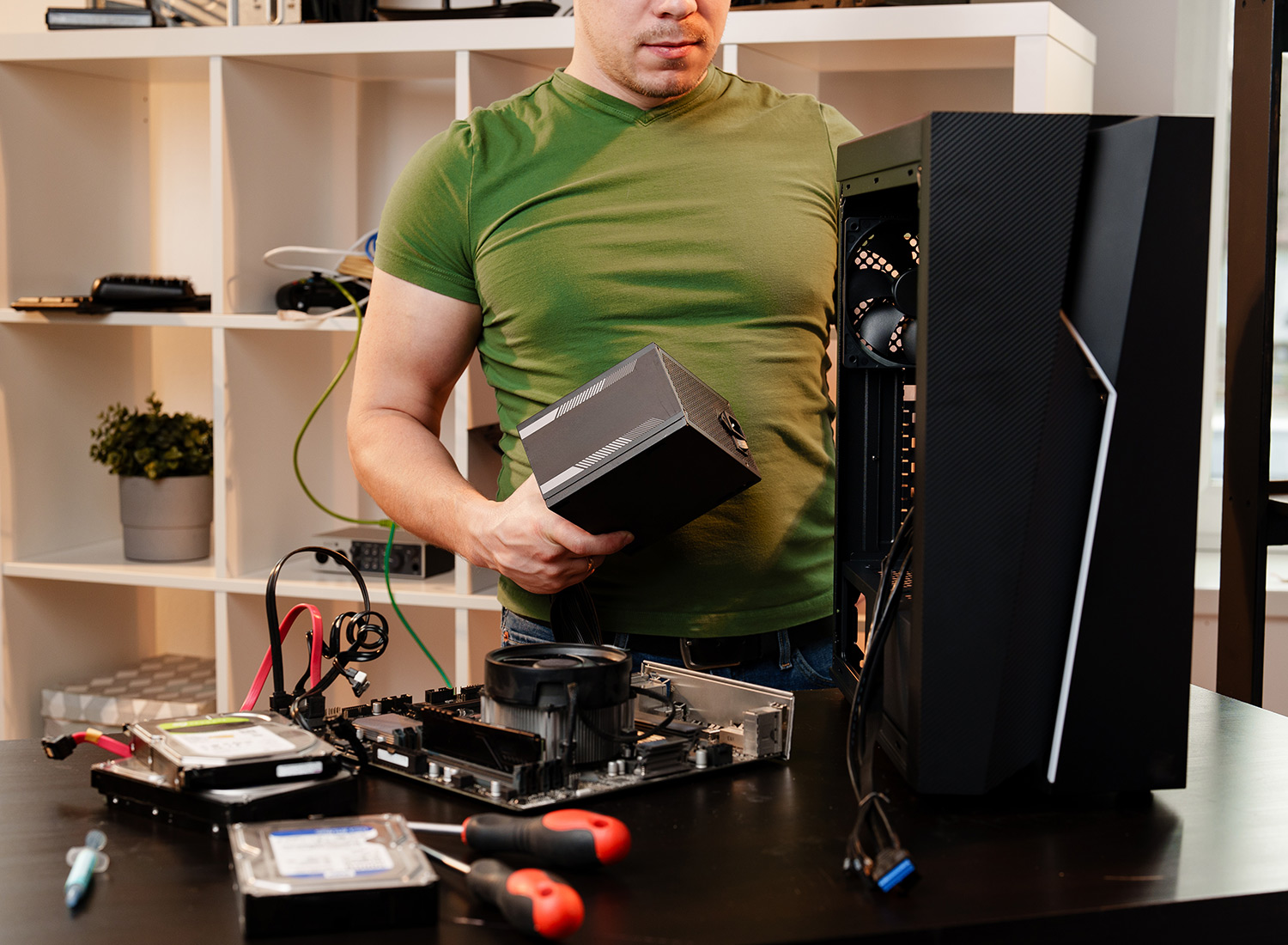
We get it, the feeling when you’ve got all the parts to build your dream PC but don’t have a clue what goes where, IT IS FRUSTRATING (and low-key depressing). Undeniably, if you like control, faster performance, or a cleaner desk, assembling a machine is a satisfying project. Therefore, this guide shows how to assemble a PC, covering parts, the step-by-step build, and testing. In this blog, we have kept the instructions plain and human, so your first build goes smoothly.
Here, you will learn what to gather, how to install parts safely, common fixes, and when to pause and ask for help. Next, we list the parts and tools you want to gather before you begin. So, hop on, because this post fits both first-time builders and tinkerers wanting a cleaner setup.
Before you start, let’s cover the fundamentals first, starting with the checklist for the right tools:
Undeniably, you only need a few basics: Phillips screwdriver set, a small flat tool, cable ties, an anti-static wrist strap, and thermal paste. Moreover, a magnetic parts tray keeps screws safe and easy to find.
Moving forward, you should work on a flat, stable table with good lighting. Furthermore, ground yourself by touching the case and avoid working on carpet if you can. Moreover, keep small parts in labeled containers and organize the manual close by. Undeniably, this prep helps anyone starting computer assembly for beginners to stay organized.
Split the build into short tasks. Use the table to plan a session. Start with CPU and cooler on the board, then install RAM and storage before placing the board in the case. Move steadily and pause if anything feels unclear.
Before we answer that question, it is essential to first know the answer to “Is a gaming build different?”
Indeed, gaming builds need power and cooling priorities. Therefore, you should choose a PSU with headroom and a case that supports your GPU length while keeping airflow high. Moreover, you should also plan for extra fans or a larger cooler if you expect long gaming sessions.
Moving forward, you should measure the GPU’s length beforehand, so it fits the case. Next, seat the card in the top PCIe slot, lock the clip, screw it down, and plug in any required PCIe power leads cleanly.
Next, set fan curves to balance noise and temperatures, and use a monitoring tool to check performance. However, if temps run high, improve intake or exhaust airflow. Next, we tidy cables and finalize cooling before boot.
Undeniably, neat cables and good airflow keep temps low and upgrades easy. Moreover, a tidy finish also makes troubleshooting faster. Below, you can see a few practical steps to finish the build well.
Route CPU and GPU power behind the tray where possible. Map anchor points and paths before tying anything down.
Group cables with ties and leave slack so you can swap parts later. Keep data lines separate from power runs when feasible.
Place intake fans at the front and exhaust at the top or rear for steady airflow. Apply a pea-sized dot of thermal paste and let the mounting pressure spread it naturally. Lastly, check fan clearance.
For instance, once, one of our clients routed a stubborn cable behind the tray, then later found it was blocking a fan, and learned to test clearance before tying everything down. Undeniably, these tips help when assembling computer components and lead directly into the first-boot checklist.
{{electronics}}
Now, that we have been through all the technical steps, let’s see how a visual guide by Easemble can help you build a sweet machine and counter the challenges of assembling electronics for you:
First, Easemble offers clear 3D walkthroughs that show exact mounting points and connector orientation. Undeniably, these step overlays make each move obvious, so you spend less time guessing.
Moving forward, our interactive checks help you flag common mistakes while you are working.
Short, pauseable 3D clips guide you through tricky installs like cooler mounts or tight cable runs. Moreover, you can repeat any step at your own pace to build confidence.
Moving forward, if you prefer visual help, search for how to build a PC with 3D instructions or DIY to assemble PC with 3D guide videos and build a PC step by step. Many makers publish 3D assembly manuals for electronics equipment and interactive instruction manuals that show each connector. Undeniably, a 3D animations feature helps show tricky moves like cooler mounting.
As a digital assembly solutions provider, Easemble offers technical support if there are any issues with the manual or application. So, you can feel free to reach out if any such problem occurs.
{{electronics}}
In a nutshell, building a PC is a hands-on skill that rewards care and small checks. So, start by following the parts checklist and the timed step table to pace yourself.
Moreover, if you want visual help, try Easemble’s 3D guide to follow along step by step. Start by downloading our application on your IOS or Android device and give your first build a confident start learning how to assemble a PC. So, feel free to reach out now and book your demo for a fresh new start!

.png)